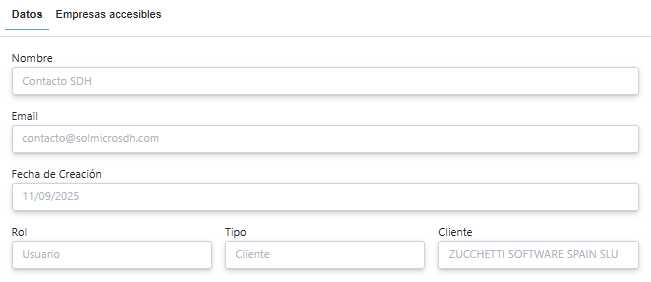
Company User
The main actions available are:
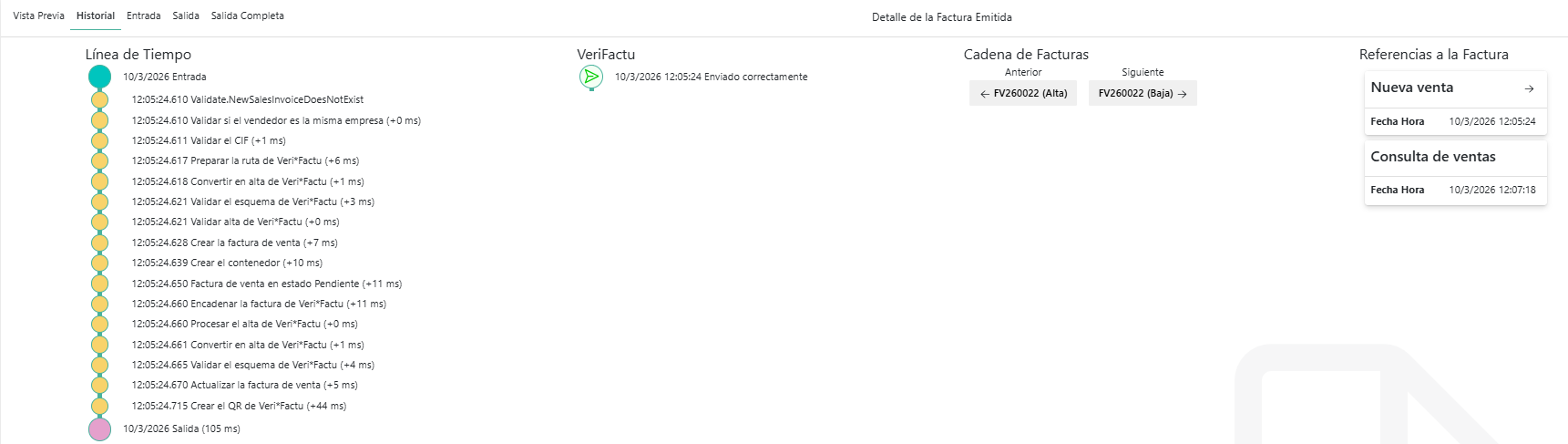
- Consult the status and chaining of documents, although this is usually handled directly from the Billing Software.
- In Veri*Factu may happen that billing records take longer than expected to be registered by the AEAT, resulting in the notification "El valor del campo FechaHoraHusoGenRegistro debe ser la fecha actual del sistema de la AEAT, admitiéndose un margen de error de: 240 segundos".
This error is exempt from the need to be corrected, so no further action is necessary. For this reason, in SDH it is marked with successful response.
This has occurred in cases where the AEAT or SDH services have been overloaded or stopped.
General operation on the SDH website
The main pages and dialogues of the SDH website are explained below. More information is available in the following video: How to Operate in SDH as a User. Password: ZucchettiTRNG
Login Dialog
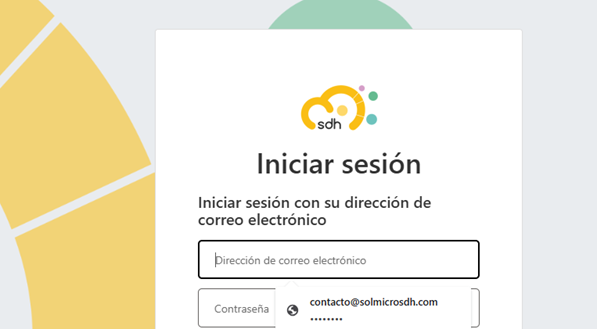
SDH assigns an initial password to new users, which they must change upon their first login to the website. SDH does not manage passwords (OAuth 2.0).
You can configure the browser to remember login credentials and fill them in automatically.
Page Inicio
The initial page that provides an overview of the SDH platform's request traffic.
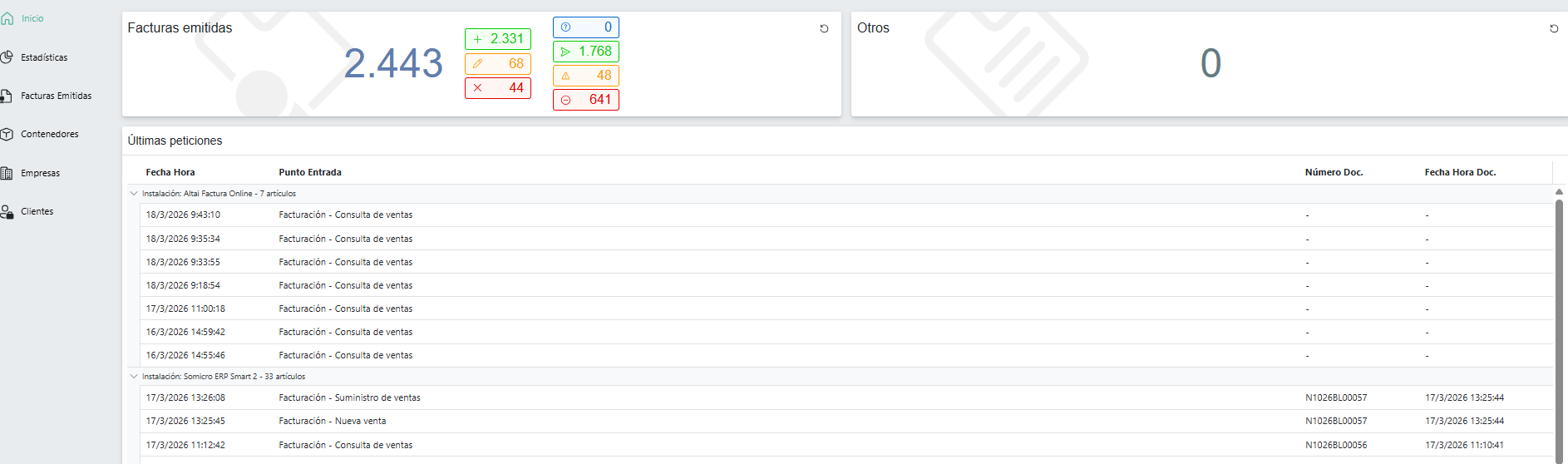
Contains:
- Left sidebar menu with page navigation options.
- Facturas emitidas:
- Displays the updated totals for the selected company's issued invoices in the tax reporting documents.
- Also shown for the administration are the totals for invoices pending delivery, successful deliveries, deliveries accepted with errors, and rejected deliveries.
- The Recargar button updates with the latest values.
- Últimas peticiones:
- Displays the latest requests for the selected company.
Page Estadísticas
It displays statistics on containers, documents, and invoices, as well as requests made during the current year.
We refer as 'Petición' to requests made to SDH from the Billing Software. Input and output data are stored in 'Contenedores'. 'Documentos' are the containers for tax reports.
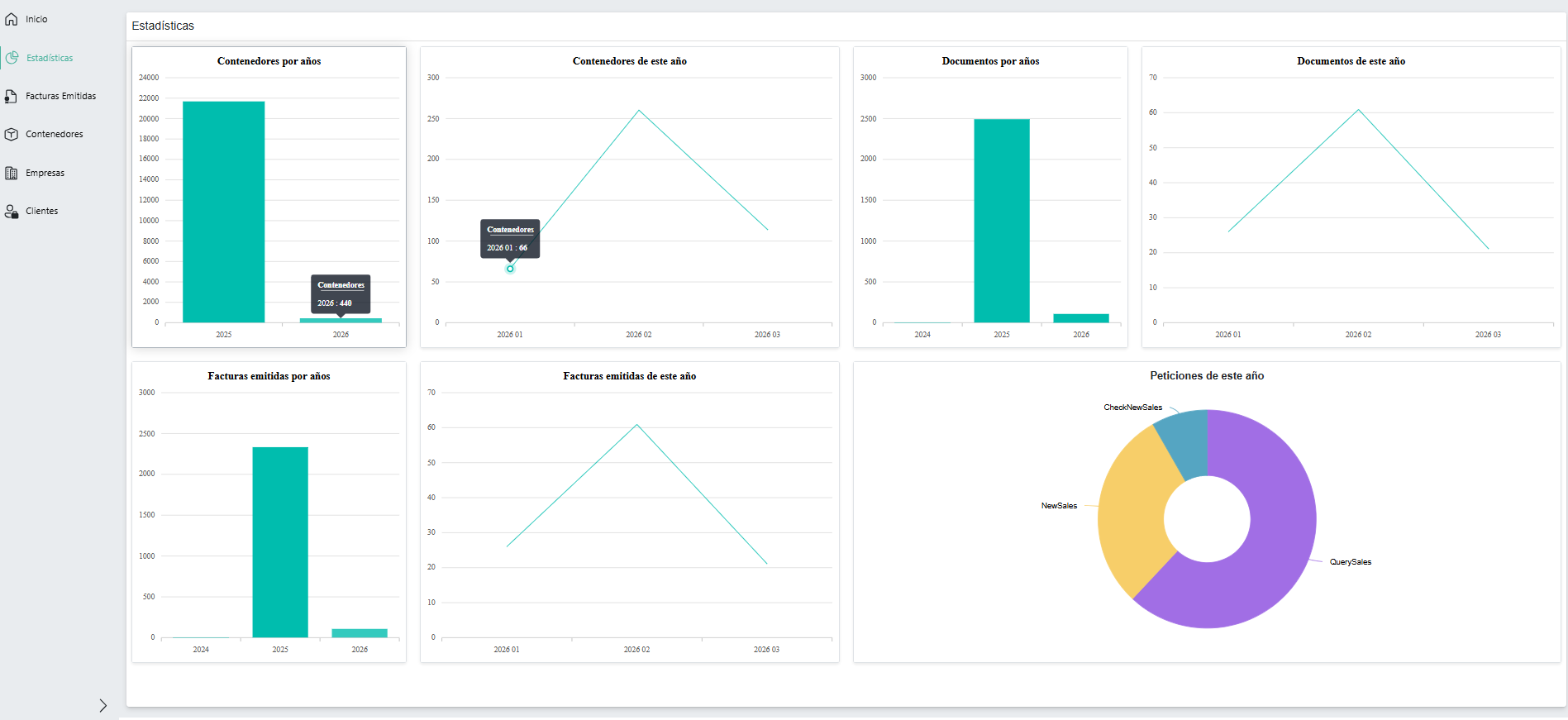
The statistics for each year are displayed as a vertical bar.
The statistics for “de este año” are displayed as a point for each month and a line connecting the points for each month.
Page Facturas Emitidas
This page displays the documents, specifically the containers for issued invoices, their corrections, and cancellations.
The Administration may reject invoices, responding with:
- Rechazo. These errors occur due to failing the submission's syntax validations and business errors. They should not occur in the SDH system, as SDH includes the validations published by the Administration.
- Aceptado con error. These errors do not result in the rejection of the invoice record..
In both cases, action must be taken based on the error provided by the Administration. The invoices must be corrected and resubmitted to the Administration for processing and validation, provided that issuing a corrective invoice (or using another mechanism contemplated in the Invoicing Regulations) or canceling the invoice is not required to resolve the issue.

On this page you can:
- Filter invoices by date:
- Select the start and end dates of the date range.
- Click the button to display a calendar where you can select the date range to apply.
- Show/Hide the filter panel:
- Shows/Hides a panel associated with the table columns to filter invoices based on the entered data.
- Once you have entered the data, press Enter to apply the filter, and to remove it, click the Cancel button in the column.
- You can remove applied filters by clicking the Cancelar Filtro button, which will appear next to the Show/Hide Filter Panel button
- Show/Hide the right panel with details of the selected invoice:
- Shows/Hides a right panel that displays more information about the selected invoice.
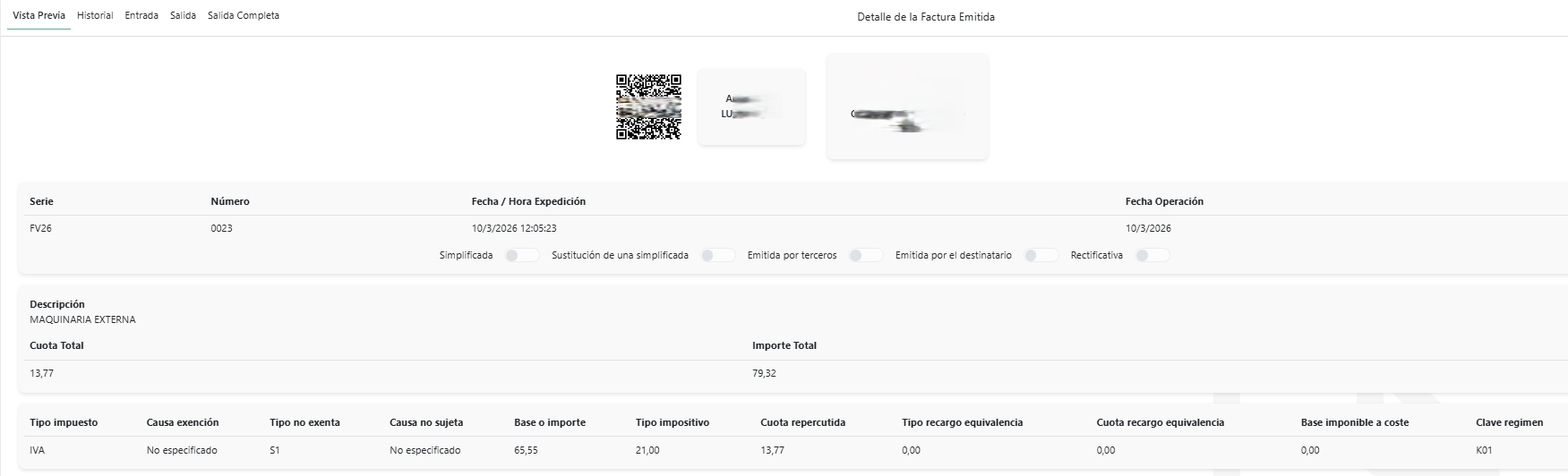
- If this panel is displayed, selecting an invoice will not navigate to a new page to view the invoice, its Vista Previa, or Historial, where, if the invoice is not accepted by the Administration, the reason for rejection is displayed.
- Refresh display: Reloads the page, showing the invoices for the selected company with their updated values.
- Possible actions in the Table:
- You can sort each of the displayed columns in ascending or descending order by clicking on the column header. To sort multiple columns, press Ctrl while clicking on the column header.
- You can select an invoice and, if the right-hand details panel is not active, view its full details.
- Using the bottom panel of the Table, you can modify the number of invoices to display and navigate forward or backward between different display pages.
- For the selected company, invoices are displayed grouped by each of its possible facilities, and within each facility, by each numbering series. For each invoice, you can see whether it was submitted correctly or incorrectly to the tax authorities, along with the invoice number, date and time of issue, and the type of submission (Alta, Baja, Subsanación).
- You can select an invoice to view its details. Clicking on the QR code will show its status with the Administration. You can also view the history.
Page Contenedores
This shows the containers registered in SDH (those that are not documents).
For example, sales invoice status queries (QuerySales) or invoice ledger submissions to the Administration (SupplySales).
Status queries do not store input or output data, but ledger submissions do.

Allows you to:
- Filter containers by dates:
- Select the start and end dates of the date range.
- You can click the button to display a calendar where you can select the date range to apply.
- Show/Hide the filter panel:
- Shows/Hides a panel associated with the table columns so you can filter containers based on the entered data.
- Once you have entered the data, press Enter to apply the filter, and to remove it, press the Cancel button in the column.
- Refresh display: Reloads the page, showing the containers for the selected company with their updated values.
-
Possible actions in the table:
- You can sort each of the displayed columns in ascending or descending order by clicking on the column title. To sort multiple columns, press Ctrl while clicking on the column title.
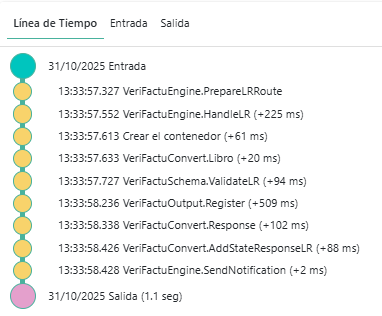
- You can select a container and view its full details, including its 'Línea de tiempo'.
- The bottom panel of the table allows you to modify the number of containers displayed and navigate forward or backward between the different display pages.
- Each container displays its date and time, company, and action.
Page Empresas
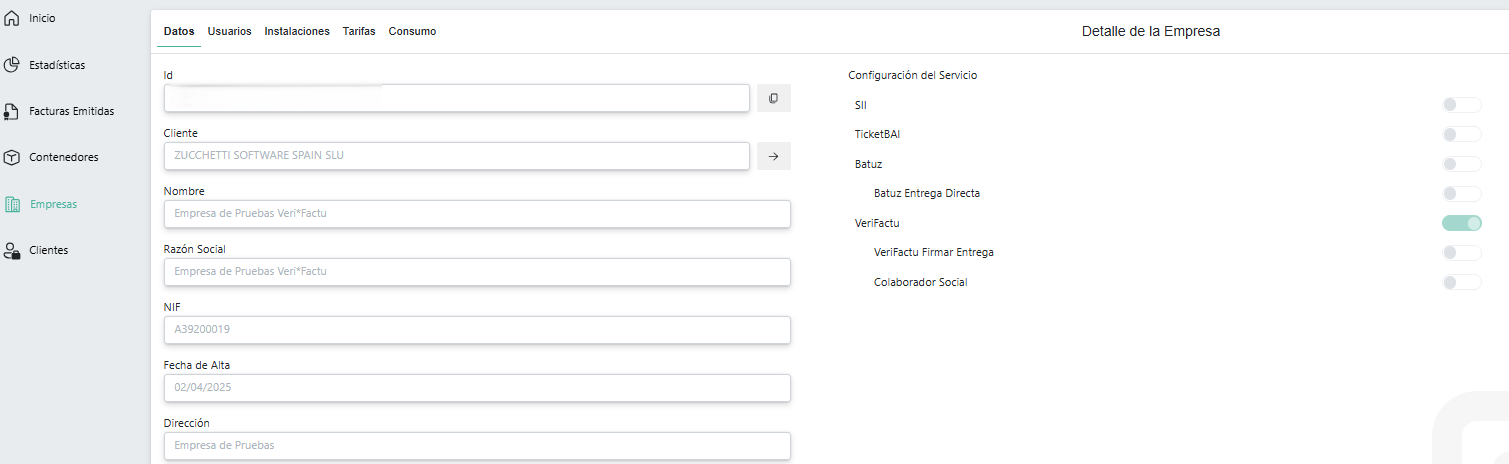
It shows the companies that correspond to each of the taxpayers registered on the SDH platform.
Within a company, a user with the following role:
- User:
- Can view the company data they are authorized to access, including users, facilities, rates, and monthly document usage.
- Can receive emails from SDH, for example, regarding invoices rejected by the administration,...
- Administrator, among other things, you will also be able to:
- Modify some company information.
- Manage the company certificate.
- Upgrade to a higher rate plan.
- Cancel your SDH service.


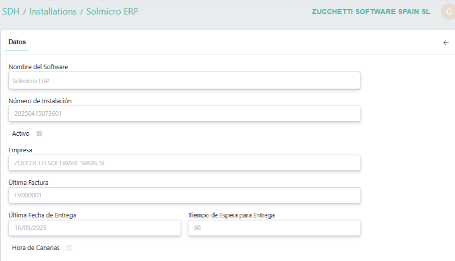
User Login Dialog
Dialogue to display and modify user data for accessing the SDH website.
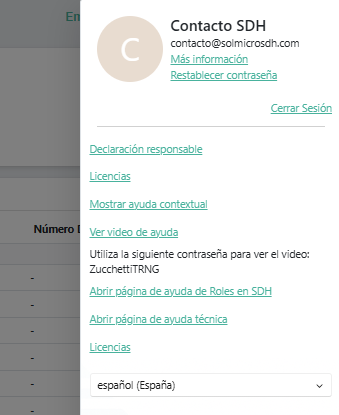
Contains:
- Más información: Displays user data.
- Restablecer contraseña: Displays a new page where you enter the email address to which a verification code will be sent to change your password.
- Cerrar sesión: Closes the browsing session for the logged-in user.
- Declaración responsable: Displays a new page with the declaration of responsibility certifying that the billing system complies with Veri*Factu regulations.
- Licencias: Displays a new page detailing the website's use of third-party libraries.
- Mostrar ayuda contextual: Indicates that you want to view interactive Help on each page, explaining each action to be performed on that page.
- Select website language: Select the language in which the website is displayed.